


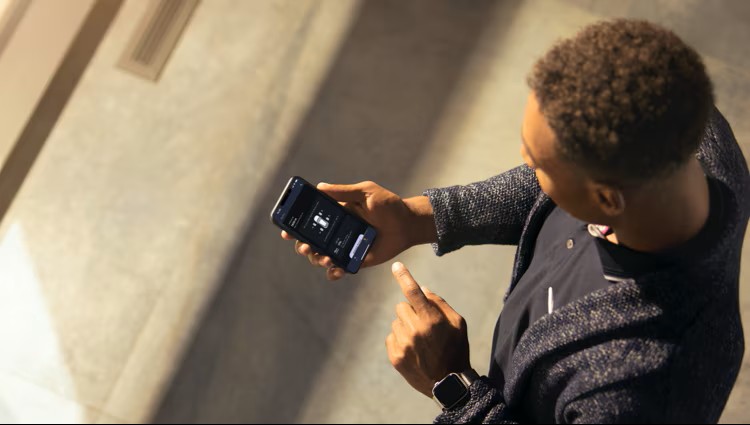
Lincoln’s Phone As A Key is a handy new feature that smartifies locking and unlocking your car. It works with any smartphone that uses Bluetooth. This guide explores what it is, why it’s useful, and how to use it while you’re on the go in Montgomery, Alabama.
What Is Lincoln’s Phone as a Key Technology?
Lincoln’s “Phone As A Key” is a feature that turns your smartphone into a digital key for your vehicle, so you can lock, unlock, start, and even drive your Lincoln using the Lincoln Way app and Bluetooth technology. You don’t need to utilize a physical key fob to do so. To use the digital key, download the Lincoln Way app, activate the embedded modem in your vehicle, and enable Bluetooth on your phone.
Which 2025 Lincoln Models Support Phone as a Key?
Lincoln launched this feature in 2020, where it was first available on the 2020 Lincoln Navigator, Aviator, and Corsair models. This means that all 2025 models now support this feature. This includes the:
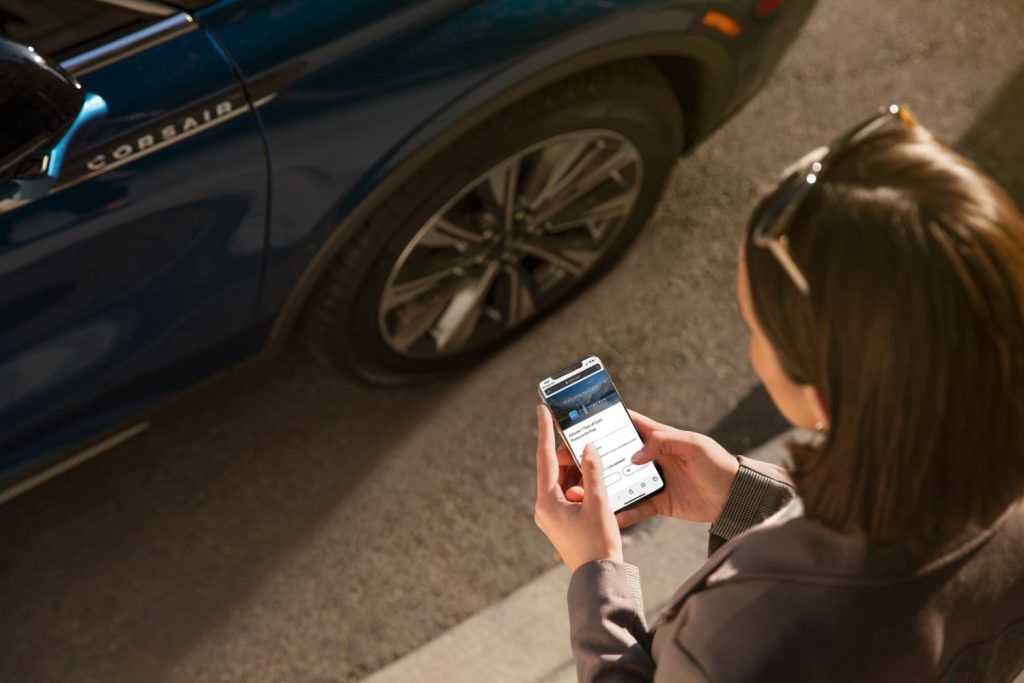
Step-by-Step Setup Guide Using the Lincoln Way App
Setting up the Lincoln Way app and using your phone as a key is easy, provided your phone and vehicle are compatible with the Phone As A Key feature.
- Download and open the Lincoln Way app from the Apple Store or Android Play Store.
- Turn on Bluetooth and location services on your phone.
- Log in or create an account.
- Select “Add Vehicle” on the app home screen.
- When your vehicle is found, give it a nickname and select “Get Started”.
- On the home screen, select “Activate Vehicle” and “OK”.
- Turn on connectivity settings on your Lincoln’s infotainment screen. It will request “Confirm Lincoln Way connection?” (select “Yes”).
- Back to your phone, on the app’s home screen, choose “Setup Phone As A Key” and “Set Up Now”.
- Fill in your username and password.
- Name your digital key (max 16 characters, no special symbols) such as “Tom’s Phone” and press “Next”.
- Wait for the key to finish downloading.
- Copy the temporary Bluetooth passcode that appears on your phone’s screen.
- Paste the passcode into the Bluetooth pairing request on your phone and click “Pair”.
- A message will appear to show the setup is complete.
- Create a backup passcode for emergencies (minimum 8 characters).
- Once you’re set up, you can control key functions via the app.
How to Lock, Unlock, and Start Your Vehicle Remotely
Using the Lincoln Way app, you can remotely lock, unlock, and start your vehicle. Phone As A Key will automatically connect when you’re within Bluetooth range. You can set it up so that when you get close to your car and can touch the handle, the driver’s door will automatically unlock.
How to Share Digital Access with Family Members
To share your Lincoln Phone as a Key with family members, you need to assign their devices as a personal profile using the vehicle’s touchscreen.
- On the touchscreen, select the “Profile” icon, then “Edit”.
- Choose ID Methods to link a device to a personal profile.
- Follow the on-screen prompts to link the family member’s device to their personal profile.
- Follow the prompts to confirm the linking process for the device.
Keep in mind that each device can only be linked to one personal profile. You can’t link to a guest profile or link a personalized name to a guest profile. Make sure your family member has the Lincoln Way app installed and set up on their phone to manage their profile. For security reasons, they may also need to activate their Phone As A Key feature using a temporary passcode provided by your Lincoln Way app, which you can share with them separately.
Backup Access: What Happens If Your Phone Dies?
If your phone’s battery dies while using Lincoln’s Phone As A Key, you can still start your vehicle by using the backup start passcode you previously set up or, of course, using the physical key. To do this:
- Park your car and hold the brake pedal down.
- The vehicle’s touchscreen will display a screen to enter the passcode.
- Put the passcode in.
- You have 30 seconds to start the vehicle by pressing the brake and start button within a 20-second window.
Safety and Security Features of Phone As A Key
The Lincoln digital key features facial recognition, fingerprint scanning, or a backup passcode on the user’s smartphone to access and start the vehicle. It uses your phone’s Bluetooth connection for proximity-based access, paired with the Lincoln Way app for managing and sharing keys. Additional layers of security include a dedicated backup start passcode.
Troubleshooting Common Phone As A Key Issues
To troubleshoot your Lincoln’s Phone As A Key feature, make sure the Lincoln Way App is running and your phone’s Bluetooth is on, then move the phone closer to the vehicle, especially the center console area. If you still have issues, restart the app and toggle your phone’s Bluetooth off and on. If the problem continues, contact Lincoln Concierge support or bring your car in to our technicians at Stivers Lincoln for further assistance.
Learn More About Lincoln Tech at Stivers Lincoln of Montgomery
The 2025 Lincoln phone key setup is easy and straightforward. However, if you’re having any trouble or need help, feel free to stop by Stivers Lincoln. Our team can provide personalized assistance, demonstrations, and support with Lincoln’s Phone As A Key setup. We can also give you advice on how to maximize your vehicle’s digital features. Contact Us today or give us a call at 334-777-6998 or stop by in person today.
Images by OEM
Connect with us


- June 2026
- May 2026
- April 2026
- March 2026
- February 2026
- December 2025
- October 2025
- August 2025
- June 2025
- April 2025
- January 2025
- December 2024
- November 2024
- October 2024
- July 2024
- May 2024
- April 2024
- March 2024
- February 2024
- January 2024
- December 2023
- November 2023
- October 2023
- September 2023
- August 2023
- July 2023
- June 2023